
$
$
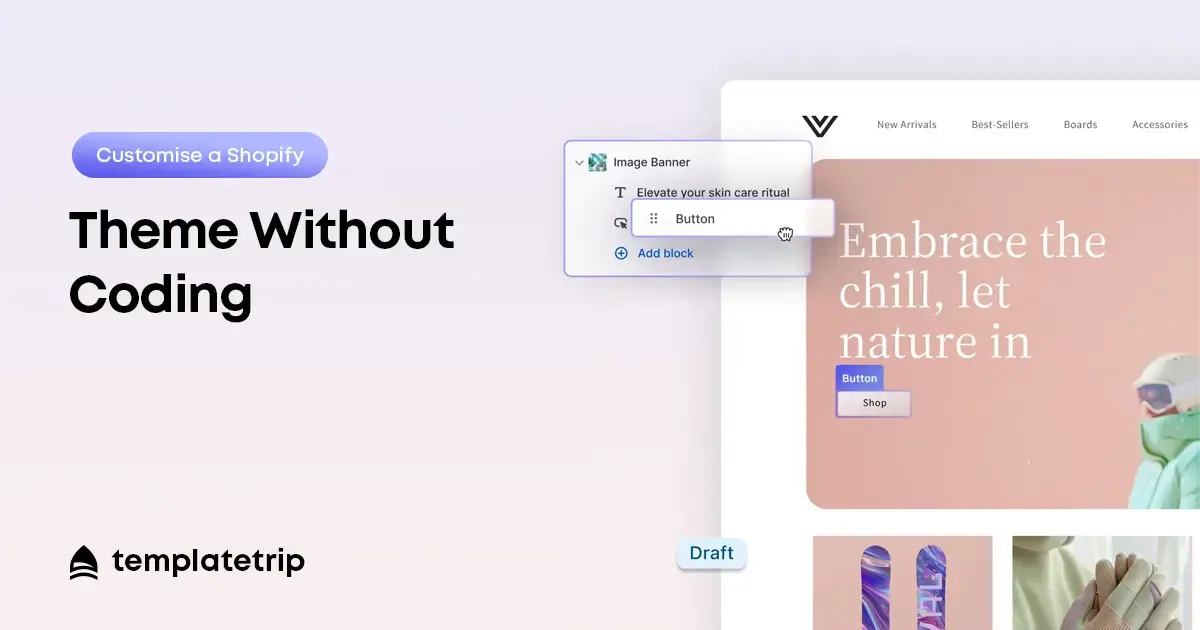
Shopify's theme editor gives store owners significant control over their store's design without touching a single line of code. Understanding how to use it effectively — and where its boundaries are — is the difference between a store that looks like a template and one that looks like a brand. This guide covers everything you can customise without code, and how to do it systematically.
The Shopify theme editor is the visual customisation interface accessible from Online Store > Themes > Customize in your Shopify admin. It presents a live preview of your store alongside a sidebar of customisation controls. Changes you make in the editor appear in the preview in real time, and are only saved to your live store when you click Save.
Shopify 2.0 themes — which all current TemplateTrip Shopify themes use — provide significantly more editor capability than older theme architectures. In a Shopify 2.0 theme, every page type can be customised with the section editor, not just the homepage.
The Theme Settings panel in the editor's sidebar contains global controls that apply across your entire store. These are the first customisations to make, because they establish your brand's visual identity consistently before you customise individual pages.
Your homepage is built from sections — modular content blocks that you can add, remove, and reorder in the editor. Click any section in the live preview to select it and see its settings in the sidebar. Click the section name and drag to reorder sections. Click Add Section at the bottom of the section list to add new content blocks from your theme's available section library.
Within each section, blocks are the individual content elements — a button within a hero section, a product card within a featured collection section. Add, remove, and customise blocks within each section to build the specific content configuration your homepage needs.
In a Shopify 2.0 theme, navigate to a product page in the editor by clicking Products in the page type selector at the top of the editor. The product page template can be customised with the same section and block system as the homepage. Customise the product template to include any section that improves buyer confidence: a tabbed section for product details, shipping information, and return policy; a reviews section prominently placed; and a upsell or related products section below the main product information.
The Shopify theme editor has limits. Changing the fundamental layout structure of page templates — moving the product image to the right side of the page when it is configured on the left — typically requires theme code edits. Adding functionality that the theme does not natively support — a custom product configurator, a non-standard checkout modification — requires Shopify apps or code changes.
For customisations beyond what the editor supports, TemplateTrip's services include theme installation and customisation assistance. For most stores, however, the combination of global settings, section customisation, and block configuration in the Shopify theme editor provides enough flexibility to make a premium theme look genuinely unique to your brand — without a developer, and without code.
customise shopify theme without coding, shopify theme customisation no code, shopify theme editor guide, edit shopify theme beginner 2026
